
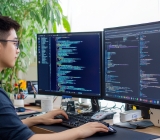

3D Modeling and Rendering Efficiency Doubled: Practical Strategies to Overcome Bottlenecks
Do you frequently encounter lag while 3D modeling, or wait hours for a single rendered visualization? In today's environment of tight project timelines and demanding client expectations, efficiency is competitiveness. Many assume the issue is inadequate hardware, but often it stems from workflow and technique. This article provides actionable solutions from three dimensions: modeling optimization, rendering acceleration, and workflow integration.
1. Modeling Optimization: Reduce Burden at the Source
1.1 Control Polygon Count Wisely
Many designers start with high-poly models for detail, resulting in sluggish response. The correct approach: Phased modeling: Use low-poly for initial proportions and layout, add details mid-process, and convert to high-poly only for final rendering. Leverage modifiers: E.g., TurboSmooth in 3ds Max or Subdivision Surface in Blender. Keep the base mesh simple and enable subdivisions only when rendering. Use proxy objects: For repeated elements (e.g., plants, people), use VRayProxy or CoronaProxy to drastically reduce scene face count.
1.2 Optimize Topology
Poor topology leads to deformation issues or rendering noise. Recommended practices:
- Add more segments in critical areas (joints, bends) and reduce vertices on flat surfaces.
- Maintain quad meshes; avoid triangles, especially on character models.
- Use symmetrical modeling—model only half and mirror to check results.
1.3 Clean Up Unused Data
Imported models often carry history records, unused nodes, and hidden objects. Regularly perform:
- Delete unused materials and textures.
- Collapse the modifier stack (once finalized).
- Weld nearby vertices and remove overlapping faces.
2. Rendering Acceleration: Reduce Waiting Time
2.1 Set Render Parameters Appropriately
Not every project needs maximum sampling. Differentiate by purpose:
- Preview/proposal: Reduce global illumination bounces (e.g., primary 2, secondary 1), set sample values to 50–80, and use a lower noise threshold (0.05).
- Final output: Increase to 100–150 and enable adaptive sampling.
- Disable unnecessary effects: volumetric light, dispersion, depth of field—these can be added in post.
2.2 Use Light Cache and Irradiance Map Effectively
For interior renderings, VRay's Light Cache with Irradiance Map significantly speeds up the process. Note:
- Light Cache subdivs: recommended 800–1200; higher values yield diminishing returns.
- Irradiance Map preset: choose "Medium" or "Animation (prepass)", avoid "Very High".
- Use progressive rendering: see low-res results early, stop and adjust anytime.
2.3 Distributed Rendering and Cloud Rendering
When local resources are limited, consider:
- Enable network rendering: connect idle computers on the LAN into a render farm.
- Choose professional cloud rendering services: pay per use, saving hardware investment. Xiyue Company offers both local and cloud-based rendering optimization solutions, flexibly configurable per project scale.
- Keep texture resolution within 2K unless close-ups require 4K.
3. Workflow Integration: Systemic Improvement
3.1 Build Material and Model Libraries
Avoid repetitive work:
- Pre-configure common materials (glass, metal, wood) and save as presets.
- Organize standard furniture and lighting models by type with thumbnail previews.
- Use asset management tools (e.g., Connecter) for drag-and-drop referencing, reducing file size.
3.2 Apply Batch Processing and Scripts
Manual repetition is time-consuming:
- Record macros (e.g., MAXScript in 3ds Max) to execute material replacement or light setup in one click.
- Install useful plugins: FloorGenerator for quick floor generation, RailClone (or Array in Blender) for arrays.
- Standardize output settings: use render presets for day/night/white-model variants.
3.3 Collaborate with Post-Production Software
Don't aim for a perfect render in one go:
- Output separate render passes (reflection, refraction, shadow) for fine-tuning in Photoshop or After Effects.
- Use tone mapping tools to adjust exposure and contrast quickly without re-rendering.
- For denoising, use dedicated AI denoisers (e.g., Topaz Denoise AI) instead of increasing render samples.
Efficiency gains often come from meticulous control of every step. Starting now, review your modeling habits, scrutinize render settings, and organize your working resources. For more complex workflow optimization needs, Xiyue Company specializes in tailored solutions for design and rendering teams—from hardware selection to workflow design—helping you achieve consistent productivity gains. Remember: a better workflow lets creativity flow freely, not be worn down by waiting.
-
 3D Cartoon Character Design and Modeling by Xiyue Company
Xiyue Company created a unique 3D cartoon r ...
-
 EDC·Trendy Camera Product Design: Form Follows Emotion
EDC Toy Camera: Braun-inspired retro design ...
-
 Product Design of Children's "Bubble Rocket" Underwater Thruster
Inspired by "Octonauts + Space", kids' "Bub ...
-
 Design of Adaptive Intelligent High-Altitude Shuttle Transport Robot
Smart rural shuttle bot: Streamlined, weath ...
-
Industrial Building Landscape Planning and Design: A Practical Guide from Modeling to Delivery
Date: Jul 9, 2026 Read: 137
-
UE5 Rendering Full Workflow Guide: Practical Methods from Modeling, Materials to Delivery
Date: Aug 4, 2026 Read: 133
-
Complete Guide to 3D Aerial View Rendering: Workflow and Delivery Standards
Date: Jul 28, 2026 Read: 109
-
A Complete Guide to Mini Program 3D Production: From Modeling to Rendering Delivery Standards
Date: Jul 27, 2026 Read: 130
-
Landscape Design 3D Modeling & Rendering Full Guide: Tool Selection & Acceptance Criteria
Date: Jul 26, 2026 Read: 106