




VR Panorama Blurry on Phones and VR Headsets: What Source Resolution Is Enough?
Let's put the conclusion first: Blurry VR panorama rendering is usually caused by insufficient resolution or effective pixels, and only secondarily by low export compression and platform re-compression. Based on 2026 static panorama delivery experience, we recommend using 8000×4000px as the baseline for the full panorama, with no less than 2K for the visible area per eye; if the local original is sharp but blur appears after uploading, check the compression chain.
How High Should the Resolution Be to Avoid Holding Back Quality?
When viewing a panorama in a headset or on a phone, only a portion is visible at a time. Users actually see a cropped section of the full image, so total pixel count alone is not enough — the density of the local crop also matters. Based on team experience, here are three reference tiers by viewing device:
- Preview on phone or mini-program: start with 8000×4000px for the full image, roughly 2K per eye;
- PC large screen or marketing page: around 12000×6000px is safer, so it doesn't look weak full-screen on a 4K monitor;
- VR headset: around 2.5~4K per eye; even many 3A applications don't push per-eye resolution extremely high, but loading size must be controlled at the same time.
During local acceptance, zoom the source image to 100% — distant signs, text edges, and light strip outlines should still be sharp. If the original already lacks detail, no amount of rendering parameters can recover it.
Why Does It Still Look Blurry Even with High Render Settings?
High resolution doesn't guarantee clean final quality. Among the VR panorama rework cases received in 2026, there are four common hidden causes:
- Insufficient sampling or anti-aliasing: high-contrast edges may have jaggies, while over-denoising makes the whole image soft;
- Unclear focus on the spherical camera: if the focus is set on the foreground, slight defocus in the background can be mistaken for panorama blur;
- JPG export quality too low: below 85%, blocky noise appears in dark areas; for video panoramas, this appears as insufficient bitrate;
- Platform automatic re-compression: many panorama platforms compress the long edge below 4000px or force a low-resolution format.
Here's a real delivery scenario: for a VR panorama showroom project, we uploaded an 8K original. It was very sharp locally, but after going live, it became blurry as soon as users zoomed in on mobile. Investigation revealed the platform had automatically compressed the image to roughly 4K and reduced JPG quality. After disabling auto-compression in the backend and re-uploading the original, quality was restored — at the cost of an extra workday for re-verification. Therefore, within the experience range, ensuring the local original is qualified first, then inspecting platform transcoding, is a more reliable troubleshooting path.
Four Steps to Pinpoint Where the Blur Occurs
Instead of making random small adjustments, follow these four steps and verify at each stage:
- First, check whether the 3D output resolution meets the baseline above. If not, increase the size and re-render a local test to verify;
- Check the renderer's sampling, anti-aliasing, and output scale to make sure they were not mistakenly set to 0.5 or 0.75;
- After export, inspect the original quality in a local image viewer. For JPG, set quality between 90%~95%; for video panoramas, check the bitrate;
- Upload to the actual platform and view the same reference object on a phone, tablet, and headset. If it's clear locally but blurry online, directly check the platform's compression settings.
The key to this approach is that the conclusion of each step becomes the premise of the next, avoiding misdiagnosing insufficient source resolution as low compression, and preventing wasted time in the export stage.
Clarity Standards Differ by Viewing Device — Don't Use One Value for All
VR panorama delivery in 2026 goes far beyond static images. At least three forms must be considered:
- Static spatial panoramas: suitable for model rooms and showrooms. Focus on whether static materials and signage are clear; try to output high-quality originals near the platform's upper limit;
- Video panoramas or walkthrough animations: bitrate and frame rate are the key. A clear still frame doesn't mean it will be clear in motion. The typical bitrate experience range is roughly 8~20 Mbps; adjust according to the target platform's specifications;
- Real-time engine interactive panoramas (e.g., UE5/WebGL): if model poly counts and textures are too large, frame drops or dynamic resolution scaling can degrade sharpness, making it appear blurry. In this case, optimizing LOD and view distance is more effective than simply increasing resolution.
Applicable Scenarios and Boundaries
VR panorama rendering is suitable for projects where standing at a key position and looking around provides enough information — for example, checking a model room's orientation, a park's traffic flow, or the surroundings of a factory site. For such needs, static panoramas or pre-rendered videos are cost-effective and easier to meet clarity requirements.
It is NOT suitable for continuous spatial experiences where users need to walk around freely, open doors, or interact with devices. If that's the case, you need an interactive scene in Unity, UE5, or WebGL. Otherwise, pre-rendering all viewpoints as panoramic frames is both slow and expensive. The judgment standard is simple: tasks that involve walking are not handled by VR panorama rendering; it only applies when a user stands at one point and looks around.
FAQ
Can I fix blurry VR panoramas by adding sharpening in post?
Sharpening only enhances edges; it cannot restore missing details and may amplify noise in dark areas. If the source resolution is insufficient, the correct fix is to re-render at a higher resolution in the original project, not to rely on post-sharpening.
My output is already 8000×4000px, so why is it still blurry online?
First check whether the render output scale was reduced, and whether the uploaded file is the original. The platform may have re-compressed the long edge to 4000px or even smaller. Disable automatic compression in the backend, or use a high-quality transcoding URL.
What JPG quality should I use when exporting static panoramas?
The typical experience range is 90% to 95%, balancing file size and clarity. Below 85%, dark areas tend to show blocky noise, which can actually look like blur. It is best to compress the original and the online preview separately.
How long does it usually take to deliver a VR panorama of medium complexity?
For static panoramas, the common range is 1~5 business days, including basic modeling, materials/lighting, and one round of revisions. If it includes video walkthroughs or interactive versions, plan for 2~4 weeks in the schedule.
Action guide: When evaluating VR panorama quality, first ask whether the local original is qualified, then check whether the upload path introduces compression. During initial solution discussions, only preliminary confirmation is needed — 2K per eye output is sufficient. For formal projects, it is recommended to reserve an extra day for real-device testing in the schedule. The resolutions, bitrates, and durations given here are experience ranges; always refer to the specific renderer and target platform documentation for exact values.
-
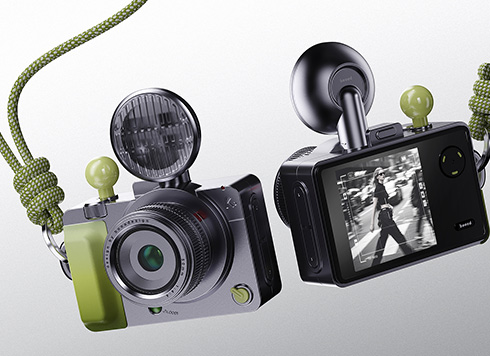 EDC·Trendy Camera Product Design: Form Follows Emotion
EDC Toy Camera: Braun-inspired retro design ...
-
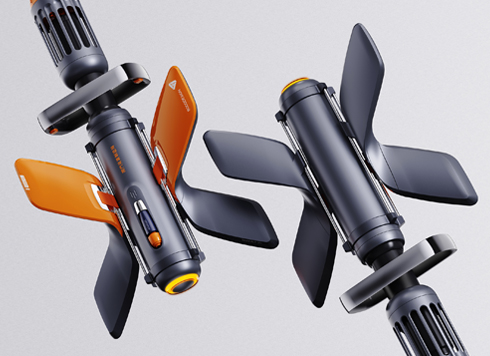 Product Design of Children's "Bubble Rocket" Underwater Thruster
Inspired by "Octonauts + Space", kids' "Bub ...
-
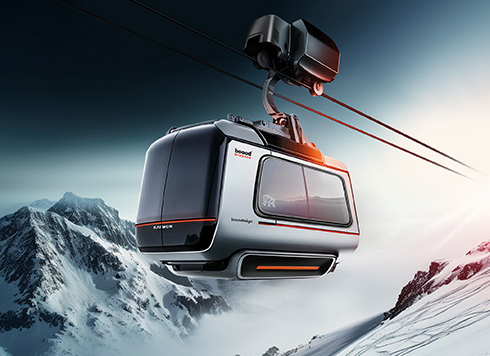 Design of Adaptive Intelligent High-Altitude Shuttle Transport Robot
Smart rural shuttle bot: Streamlined, weath ...
-
 "Effortless" Exoskeleton Wear: Unleash Ultimate Freedom in the Sea
"Unfelt Wearability" & "Bionic Power" redef ...
-
In landscape design 3D modeling, why can the client tell at a glance that library trees look pieced together?
Date: Sep 13, 2026 Read: 6
-
When a UE5 build is packaged for a client demo, why does it get darker or lose textures on another computer?
Date: Sep 12, 2026 Read: 11
-
Product Appearance Design Looks Fine, So Why Does Engineering Say It Can't Be Molded?
Date: Sep 11, 2026 Read: 21
-
Renders look washed out with crushed shadows — which step usually goes wrong first?
Date: Sep 10, 2026 Read: 24
-
Why does AI digital human 3D modeling have a waxy look? Which step is the problem?
Date: Sep 9, 2026 Read: 27