




Why does a saved campaign poster show in the file manager but not in recent gallery items?
Bottom line first: when a user long-presses to save a campaign poster, sees a success message, can find the file in the file manager, but cannot see it in recent gallery items, the gallery is usually not broken and permission is not necessarily missing. The more common issue is treating “the file was written” and “the gallery was registered” as the same step. Based on 2026 mobile delivery experience, on Android these two steps are often separate: after a file lands in a public directory, if it is not registered in the system media library, the gallery will not discover it by itself; on iPhone, saving goes through the system photo library write API, so a successful write usually means it is in the library. First check whether the file exists, whether the index exists, and whether the gallery has refreshed; only then discuss permissions and device models.
“Saved” usually covers only the file-writing step
A complete save involves at least four steps: obtaining the image data, writing the file, registering it in the media library, and refreshing the gallery. In many apps, “save successful” means only that the second step returned success and the bytes really landed on disk; but the system gallery does not scan an app’s private directory, nor does it guarantee immediate awareness of new files in a public directory.
The pass line is not how well the pop-up copy is written, but whether after saving the file can be located in the file manager and the new image can also be seen in the gallery. Only when both are true has it really been saved.
- Written to the app’s private directory: it cannot be found in the file manager, and the gallery will definitely not show it;
- Written to a public image directory but not registered: it is visible in the file manager but absent from the gallery;
- Registered in the media library but no refresh triggered: some vendor-customized galleries show it only after the next cold start.
The Android–iPhone difference comes down to whether files and indexes are two separate ledgers
Android often has two ledgers: the file on disk and a media index in the system; iOS usually has one, because it calls the photo library write API and completes the file and index in one go. So the same sentence, “saved to the gallery,” may mean only “the file was written” on Android.
The two platforms also have different permission expectations. On iOS, saving to the gallery usually needs only the “add to photo library” usage description; recent Android generations split media permissions more finely, and using a read permission to gate the save flow is a common overdesign. For specific permission names, check the official documentation and the platform rules current at the time; do not reuse an old project checklist from memory.
- Write location: iOS hands it to the system photo library; on Android, the common approach is to write through the media library API rather than building a path manually;
- Index registration: iOS completes it implicitly through the API; Android requires explicit registration, or actively notifying the scanner after writing;
- Failure feedback: iOS generally returns a clear error; Android commonly produces “write succeeded, registration failed, yet success is still shown”;
- User-facing behavior: on iPhone it is usually perceived once; on Android delays often appear, from a few seconds to only after a reboot.
I usually check in four steps, in this order
The order matters: the first two steps cost almost nothing, while later steps increasingly require device coverage, code changes, and a new release. Put cheap verification first so you do not disturb the whole release process for an indexing issue.
- Step 1: confirm the file really landed on disk. Immediately read back the file size and readability after saving, rather than only checking that the write function threw no exception; the pass line is getting a complete path and a size matching the source image.
- Step 2: confirm whether it was registered in the media library. In the same save, was the media library write or scan notification called? This is the typical breakpoint for “present in the file manager, absent from the gallery.”
- Step 3: confirm whether the gallery side refreshed. Compare one device with a stock system and one with a vendor-customized system. If only the customized gallery is delayed, it is a refresh timing issue, not a save failure.
- Step 4: only then return to permissions and system version limits. This includes behavior differences after scoped storage, read-only authorization, and permissions the user previously turned off in system settings.
Running through all four steps can locate the specific layer where the problem sits; by contrast, immediately telling users to uninstall and reinstall or reboot the phone shifts the troubleshooting cost onto the person who cannot get the information.
Experience ranges for cost and timeline: compare approaches first, then decide whether adaptation is needed
Based on 2026 project delivery experience, there are several common ways to handle this issue. The investment difference is not only in the amount of code, but also in test coverage and long-term explanation cost. The following are experience ranges, not a quote; adjust them by campaign scale, device coverage, and release window.
- Full adaptation: add media library registration, refresh timing, and failure classification together. Development is commonly about 0.5–2 person-days; test coverage commonly includes 5–10 Android devices plus 2–3 iPhones; regression commonly takes 1–2 rounds. It suits scenarios where users will come back to look for the image.
- Browser download as a fallback: development is commonly within half a day, with about half a regression round. The cost is low, but users have to leave the app, and retention and support explanation costs come back elsewhere.
- Saving only to a private directory: not recommended. It is invisible in the file manager and absent from the gallery, which turns “save successful” into an empty statement.
If only 3–5 days remain in the release schedule, I prefer to first build the main path of “write to a public directory + register in the media library + read back after saving,” and record refresh delay as a known issue; then add scan triggering for vendor-customized galleries in the next version. The typical range for this trade-off is about half a day to one day for the main path, plus another half a day to one day for vendor-difference regression.
A delivery scene: only during rollout did we find that three customized galleries needed an active scan trigger
In early 2026, one week before a campaign page went live, the assets to save were six groups of posters. The schedule did not allow re-architecting, and the budget was only enough to patch the existing save logic; test devices covered about ten Android phones plus two or three iPhones. The approach was to insist on reading back the media library once after saving and to add a location hint in the success copy—“check recent items in the gallery”—rather than writing only “saved.” During rollout, we indeed found that three device models needed an active scan trigger. The cost was about half a day to one day extra for adaptation plus one regression round, an experience range of about 3%–8% of total work hours for that release, but it prevented support from being flooded with the same question after launch.
Conversely, in projects that only change the copy without adding registration, users cannot find the image and come asking; support can only follow a script and tell them to reboot, resulting in a noticeable complaint volume that is hard to attribute. The cost of this kind of issue is never just fixing code; it is explanation.
Applicable and non-applicable boundaries: write them clearly before starting
Full adaptation fits cases where users clearly intend to keep the image—campaign posters, order receipts, digital business cards, payment QR codes obtained by scanning—and the save action happens inside the app. In such scenarios, a save failure turns directly into a support ticket.
Cases where it is less necessary should also be stated clearly: if the image itself has a direct link on the server and users can long-press the link to download it in a browser, or if it is only a one-off small internal campaign with very few users, then building a full media library adaptation layer often costs more than letting users download through the browser. The boundary judgment can be simplified to one sentence: after a successful save, will users come back to look for this image? If yes, it is worth doing; if no, do not add long-term compatibility branches.
FAQ
It says saved, the file manager has the image, but the gallery does not—which side should be fixed first?
Fix media library registration and refresh first, not permissions. The file is already on disk, which means the write succeeded; what is missing is letting the system gallery know the image exists.
Does this only happen on Android, and can iPhone be ignored?
Not entirely. On iPhone, the photo library write API usually registers the image in one step, but denied permission or storage errors can still cause failure; on Android, files and indexes are more commonly separate, requiring explicit registration and refresh.
Does asking users to reboot the phone or reinstall the app help?
It may occasionally make the image appear, but it should not be the solution. A reboot only happens to trigger a scan; the root cause remains. Reinstalling is more likely to lose drafts and login state, so the cost is not worth it.
Is it enough to change the prompt copy to “save failed”?
No. At minimum, distinguish three categories—no permission, write failure, and registration failure—and give users a next step they can follow themselves; otherwise support will still be repeatedly asked the same question.
Action suggestion: first save once on each of two devices running different systems that you have on hand, and check both the file manager and the gallery to confirm “the file is there and the index is there” before looking at permissions. The applicable boundary is a scenario where users actively keep the image and need to find it later; if they only need a temporary look, or the image itself has a downloadable direct link, going straight to browser download is simpler.
-
 Well-Recognized Custom E-Commerce Mall System Dev
The Good Shopping mini-app is natively buil ...
-
 Anhui Huixiang Vegetable Garden Agricultural Products Mini Program v2.0 Iteration Development
HuiXiang MiniApp V2.0: Upgraded homepage, n ...
-
 Kunshan TrialBook Mini-Program Custom Development
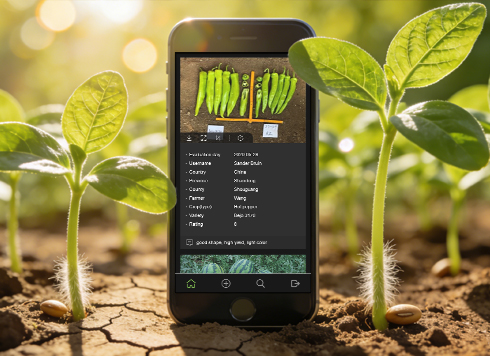
This project developed an English-only Tria ...
-
 Agricultural Products WeChat Mini Program Custom Development
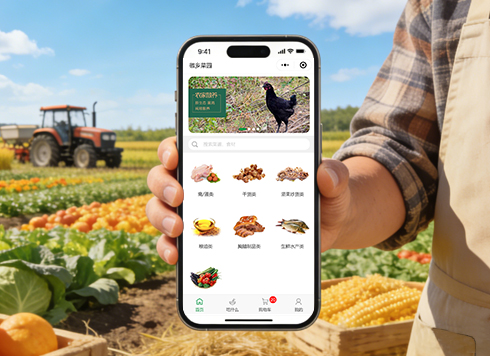
Lvran Di enhances agricultural sales via a ...
-
Why does a 10 a.m. booking show 2 a.m. in the store backend?
Date: Nov 23, 2026 Read: 5
-
Is it common for Back to go to the home screen only when users enter from a QR code campaign page, but work fine from the app home page?
Date: Nov 22, 2026 Read: 17
-
When an order screenshot shows a total a few cents off or trailing decimals, is the page displaying it wrong or is the API not returning the right amount?
Date: Nov 20, 2026 Read: 26
-
The business license a user uploads looks upright in the admin preview but lies sideways in the exported PDF—should I check the display layer or the file itself first?
Date: Nov 19, 2026 Read: 33
-
When users switch the system language to English, why do order statuses and error messages stay in Chinese: fix translation files first or check API parameters?
Date: Nov 18, 2026 Read: 38