





Android says “problem parsing the package”: check the signature first, or ask about the phone’s OS version?
Bottom line: when Android shows “There was a problem parsing the package,” it usually isn’t a broken phone. More often the APK didn’t download completely, the signatures conflict, or the OS version and CPU architecture don’t match. Based on 2026 mobile project delivery experience, checking file integrity and signatures first, then minSdkVersion and ABI, saves far more communication overhead than blindly swapping phones. This applies to enterprise beta distribution, website downloads, and third-party channels; if the user is installing from an app store, the troubleshooting path is different.
What “problem parsing the package” is actually telling you
Before installing, the Android installer parses the APK manifest, signature, and resource table. If parsing fails, installation never starts, and the user sees “problem parsing the package” or a similar message. This is not the same as “install failed” or “app not installed”: a parse failure points more to an incomplete or invalid package, not to runtime issues such as storage space or permission prompts.
Start with these points:
- File integrity: Compare the downloaded file size with the original package on the server. Differences are often a few MB to tens of MB, caused by an interrupted download or the browser renaming the file.
- Signature info: An APK with the same package name but a different signature cannot overwrite an existing install; it shows up as a parse or install-stage error.
- OS version: If the minSdkVersion declared in the APK is higher than the device’s current Android version, the installer rejects it outright.
- CPU architecture: A package that only includes arm64-v8a may fail to parse on some older devices or x86 emulators.
- File source: When an APK is forwarded directly through chat apps, some Android systems wrap or restrict parsing. Use a browser download or the official download page.
What to check first to save time: the three-stage triage
In project delivery, the better approach is the three-stage triage: file first, then signature, then system. Troubleshooting cost rises in that order — a file issue can be confirmed in minutes, while an OS compatibility problem often means going back to the build configuration or even changing code. Get the order wrong, and you end up wasting time swapping test devices.
- Step 1: File integrity. Check the file size and checksum (such as MD5/SHA-1), and use adb install or the installer to see the specific error. Don’t rely only on the “download complete” message; a failed browser resume can also leave an incomplete file.
- Step 2: Signature and package name. Confirm whether the APK signature matches the installed version, and whether the package name matches the user’s older version. Mixing test and production packages is a common trap: once a phone has a test-signed version installed, a production-signed package cannot overwrite it directly.
- Step 3: OS version and ABI. Check minSdkVersion, targetSdkVersion, and the target device distribution, and confirm whether the APK includes the corresponding ABI libraries. Recent Android versions impose install restrictions on a targetSdkVersion that is too low, so verify against platform guidelines.
If time is tight, use this set of comparisons to point you in the right direction:
- Signature conflict: The same phone previously had a version with the same package name but a different signature; it shows a parse error or install failure, and installing works after uninstalling the old version.
- OS version incompatibility: The same APK works on most new models but fails on older-version devices, and uninstalling and reinstalling doesn’t help.
- ABI mismatch: It fails on emulators or devices with certain chips, but may work on a mainstream physical device.
- Incomplete file: The problem disappears after re-downloading on a different network, and the original file’s checksum doesn’t match.
Where signatures, versions, and architecture tend to cause rework
On delivery sites, package parse errors tend to cluster around three areas: signature management, version declarations, and ABI trimming. The usual constraints are a limited budget, few test devices, and a tight release deadline. The practice is to fix an APK checklist before handing off for testing, covering signature, minSdk, ABI, and download checksum. The cost of missing it is a burst of user-side feedback — at best a repack, at worst replacing every channel package, with a one-to-three-day delay being a typical experience range. In our project delivery, we also put this kind of checklist before the test handoff milestone.
Apply these specific criteria:
- Signature consistency: When production and test packages use different keystores, document clearly that the old version must be uninstalled before installing. A passing standard is that every channel package installs directly on a clean device.
- minSdkVersion: Don’t raise it blindly for convenience; first look at the target user device distribution. A common approach is to cover older OS versions that still hold a meaningful share, then show a downgrade notice for lower versions.
- targetSdkVersion: In 2026, the typical approach is to follow mainstream app store requirements. Too low affects store listing and installation on newer OS versions; too high means handling permission and background restriction changes in advance.
- ABI trimming: Keeping only arm64-v8a reduces package size but misses some older devices and emulators. To cover both, keep armeabi-v7a and arm64-v8a, based on the target device mix.
- Download path: The download page must return the correct Content-Type and file name, so the browser doesn’t open the APK as text or rename it automatically.
Applicable scenarios and boundaries
This troubleshooting method for parse errors fits enterprise beta distribution, website downloads, offline promotional QR-code installs, and third-party channel packages. In these scenarios, the APK is provided directly by the client or developer, user devices vary widely, and signature and ABI problems are more likely to surface.
Be equally clear about when it doesn’t apply: if the user is installing from a mainstream app store, an install failure usually means checking the store version, device compatibility statement, and account region first, not suspecting the APK file. If only a few users report it, have them re-download and verify the file size before deciding whether to investigate the package itself. Drawing clear boundaries avoids applying one method to every install problem.
How to judge whether it’s done well: acceptance criteria
APK delivery quality isn’t about “it installs on my phone”; it’s about stability across the target user coverage. For acceptance, at minimum check the following:
- Multi-device coverage: Based on the target user device distribution, cover mainstream brands and different Android versions. A typical range is 8 to 15 physical devices, adjusted to the project budget.
- Clean install and overwrite install: Test both. A clean install verifies package integrity; an overwrite install verifies signature consistency.
- Download integrity: The official download page should provide a checksum, or at least guarantee a consistent file size, to avoid package tampering in transit.
- Failure logs: Keep the adb install or system installer error messages so you can distinguish parse, signature, and version issues.
- Channel package verification: If there are multiple channels, confirm each channel package has consistent signing, version number, and ABI configuration.
The counterexamples are clear too: installing successfully on one development machine and sending it to users, or using the same download link for test and production packages. Once user volume grows, these practices noticeably increase rework and explanation costs. Verify item by item against official documentation, platform guidelines, or the delivery acceptance checklist.
FAQ
If a user reports a package parse error, does telling them to reinstall help?
First have them re-download and verify the file size. If the download was interrupted or the file is corrupted, reinstalling helps; if it’s a signature conflict or OS version incompatibility, reinstalling usually doesn’t.
The same app installs from the app store but shows a parse error when downloaded from the official website. Why?
Common causes: the website package didn’t download completely, the website package signature differs from the store package, or the website package’s ABI trimming is too narrow. Check the file checksum and signature configuration first.
If the signing key is lost or changed, can existing users still install an overwrite directly?
A different signature with the same package name cannot overwrite directly; users usually need to uninstall the old version first. Uninstalling clears local data, so important data should rely on server-side backup.
On Android 14/15, installing an old package shows incompatibility. Is upgrading targetSdkVersion mandatory?
In most cases you need to upgrade targetSdkVersion according to platform requirements and handle the corresponding permission and background restrictions. Verify the specific version requirements against official documentation and app store guidelines.
Can a single arm64 package cover all Android phones?
No, not completely. arm64 is mainstream today, but some older devices and emulators still need armeabi-v7a or x86 support. Whether to keep them depends on the target device distribution.
If you’re preparing beta distribution or an official download page, make a single APK checklist covering signature, minSdkVersion, ABI, and download checksum, and review it item by item before test handoff. If budget and schedule allow, keeping both armeabi-v7a and arm64-v8a is safer. If your users are concentrated on mainstream new devices and only use the app store, this troubleshooting path can be simplified — but still confirm that the store package and website package don’t use the same signing set.
-
 Well-Recognized Custom E-Commerce Mall System Dev
The Good Shopping mini-app is natively buil ...
-
 Anhui Huixiang Vegetable Garden Agricultural Products Mini Program v2.0 Iteration Development
HuiXiang MiniApp V2.0: Upgraded homepage, n ...
-
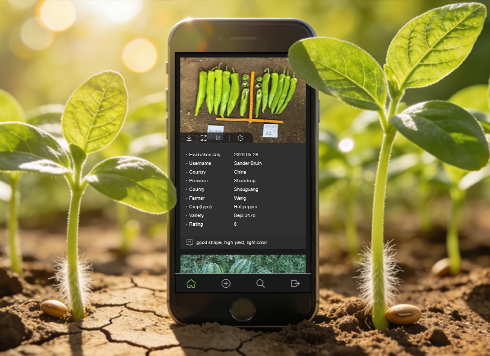 Kunshan TrialBook Mini-Program Custom Development
This project developed an English-only Tria ...
-
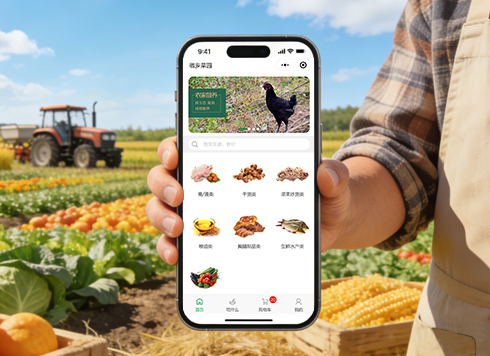 Agricultural Products WeChat Mini Program Custom Development
Lvran Di enhances agricultural sales via a ...
-
The app isn’t live yet—can I just send clients the installer for a trial?
Date: Sep 14, 2026 Read: 69
-
When users enter a shipping address and the keyboard pops up, the submit button can't be tapped: should you change the page structure or the input component first?
Date: Oct 14, 2026 Read: 7
-
After building an app with a cross-platform framework, Android colleagues say list scrolling feels rough and iPhone colleagues say swipe-back is unreliable: should we change the framework first or patch platform adaptation first?
Date: Oct 13, 2026 Read: 12
-
User-uploaded video plays on iPhone but some Android phones show only audio, no picture: does asking the user to re-record help first?
Date: Oct 12, 2026 Read: 17
-
Company Bluetooth device is discoverable on a colleague's phone but not on my new phone — what should I check first?
Date: Oct 11, 2026 Read: 23